Deploy java web
application in Azure Web App
1. Create an azure webApp with Apache Tomcat (Here I created with name of horizonsjava)
2. After creating WebApp, goto DASHBOARD under quick glance, Reset the credentials
3. Open File Explore and enter the ftp url (provide the FTP host name)

Give the credentials of Deployment ftp and click on “Log on”
4. Navigation to site/wwwroot/bin/apache-tomcat-8.0.26/
5. Now we need enable the
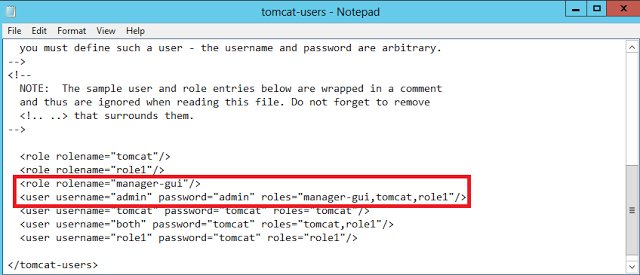
users, Open tomcat-users.xml “/conf/tomcat-users.xml”
Now remove the comment surrounded the roles and user tag(<!-- -->)
And add two lines highlighted and save it
6. Restart the azure webApp
7. Now login to Visual Studio Online
account
Push your Java app to VSO using Eclipse
Go to builds and create vnext build wi
th following activities
a. Add a build step Ant.
b. Ant build file:
give the server path of build.xml file
c.
Target(s):war
(Note: To generate a war we need to add peace of code in build.xml file)
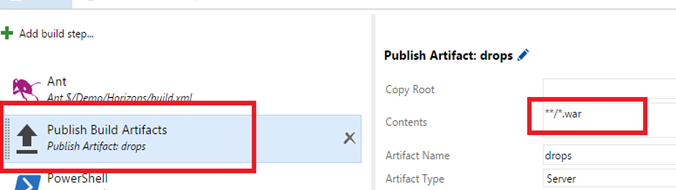
a. Add Publish build Artifacts
b. Contents: **/*.war
c. Artifact Name: default
it is “drops” if required any name you can change it.
a. Add Publish build PowerShell
b. Script filename: browse the version control path of .ps1 file
Create a power shell
script and Check in to the VSO
The power shell script is
$ftp_uri = ftp://waws-prod-sg1-009.ftp.azurewebsites.windows.net/site/wwwroot/bin/apache-tomcat-8.0.26/webapps/
$user = <<FTP User>>
$pass = <<FTP Password>>
$path = $args[0]
$webclient = New-Object System.Net.WebClient
$webclient.Credentials = New-Object
System.Net.NetworkCredential($user,$pass)
foreach($item in Get-ChildItem -recurse $path){
$relpath = [system.io.path]::GetFullPath($item.FullName).SubString([system.io.path]::GetFullPath($path).Length
+ 1)
if
($item.Attributes -eq "Directory"){
try{
Write-Host Creating $item.Name
$makeDirectory = [System.Net.WebRequest]::Create($ftp_uri+$relpath);
$makeDirectory.Credentials = New-Object
System.Net.NetworkCredential($user,$pass)
$makeDirectory.Method =
[System.Net.WebRequestMethods+FTP]::MakeDirectory;
$makeDirectory.GetResponse();
}catch [Net.WebException] {
Write-Host $item.Name probably exists ...
}
continue;
}
"Uploading $item..."
$uri
= New-Object System.Uri($ftp_uri+$relpath)
"$relpath"
$webclient.UploadFile($uri, $item.FullName)
}
c. Arguments : $(Agent.BuildDirectory)\Artifacts
8. And save the
build
9. Queue the
build.
10. Open browser and enter the http url of your web app,
My Web app URL is "http:// horizonsjava.azurewebsites.net/Horizons"